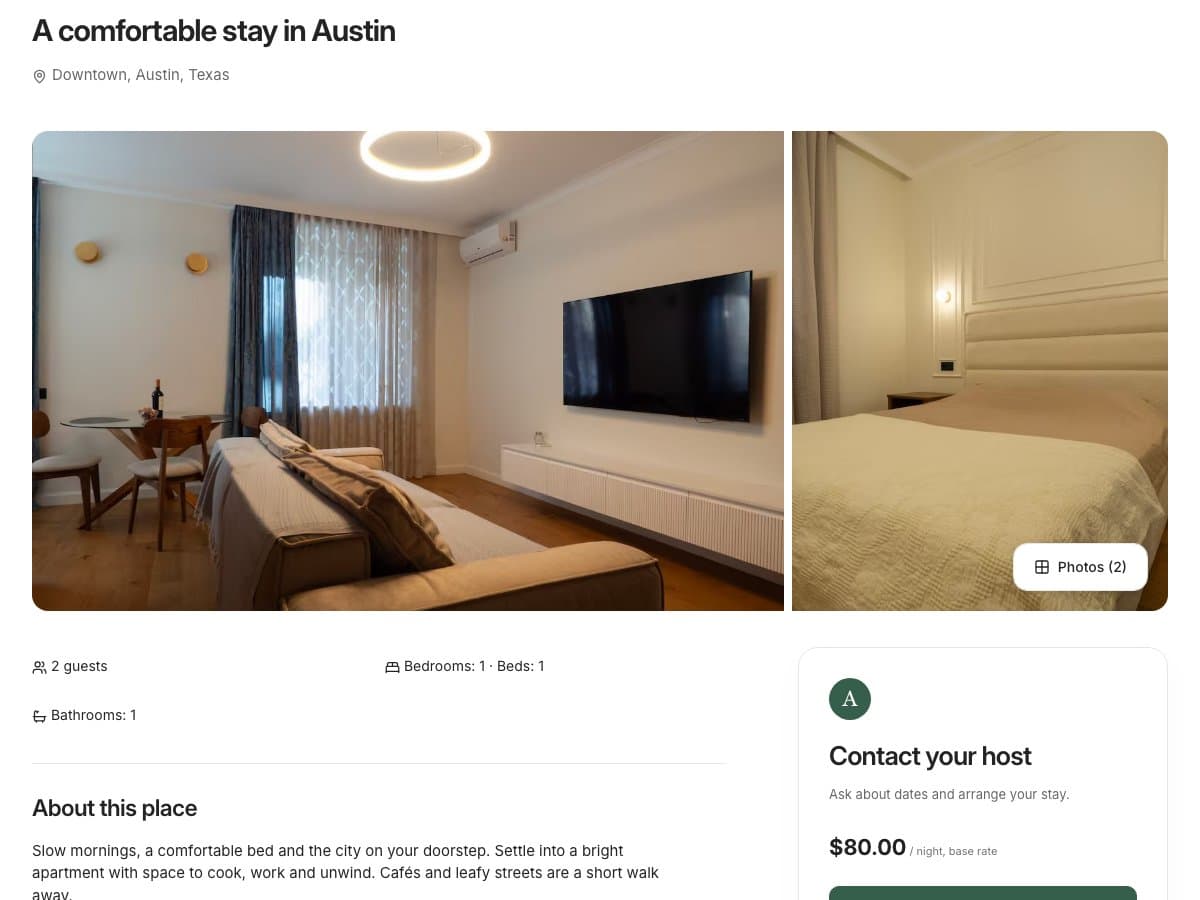
You have a place worth staying in. Giving it a home online should be straightforward, too. A no-code vacation rental website brings your photos, availability, and contact details together so guests can explore your property without a long exchange of messages.
This guide walks through a simple setup in JustStay. It is written by the team that builds the product, with a focus on what you can actually publish today: a hosted property page with its own shareable link.
Choose a page design, add your property information and photos, set up availability, choose how guests contact you, and publish. Then share the link or download its QR code. You do not need to write code or arrange separate hosting for your JustStay page.
What you need before you start
Gather the details you would want a guest to know before they contact you. Having these ready makes setup much easier:
- Photos you have permission to use: the main living space, bedrooms, bathroom, kitchen, and any outdoor area or distinctive amenities.
- The basics: property name, location, guest capacity, bedrooms, beds, bathrooms, and amenities.
- Your availability: existing reservations, dates you want to block, and calendar export links if you use another booking platform.
- A guest contact method: a business email, phone number, or WhatsApp number you are comfortable making public.
- Your stay details: check-in and checkout times, house rules, and cancellation terms.
You can start with one property and one useful page. Prepare a short description that answers what makes the stay comfortable and who it suits.
1. Choose a setup that fits your rental
Think about what should happen when someone finds your website. If you want them to explore the property, check dates, and ask you about a stay, a contact-first page is a practical starting point.
JustStay provides that hosted page, with optional booking requests. It does not process accommodation payments. If your requirement is instant card checkout or a fully custom website, include those needs when comparing tools.
Before opening the editor, look through the example property page. Check it on your phone: this is how many guests will first see your rental.
2. Add your property and photos
In JustStay, start a property page from your own Airbnb or Booking.com listing link, or add the details yourself. Link import can bring in accessible photos and information; it does not connect your platform account. Some listings block imports or provide incomplete results, so review everything and fill in any gaps.
Give the page a recognizable property name. Lead with a photo that clearly shows the space, then arrange the rest so guests can understand the layout. Use descriptions that explain what is pictured, such as “Second bedroom with two twin beds,” rather than a string of keywords.
Choose one of the page designs and an accent color that fits your property. Keep the description specific. “Two bedrooms, a shaded patio, and a desk by the window” tells a guest more than “the perfect getaway.”
For example, an apartment description could begin: “A bright two-bedroom apartment with a full kitchen and a separate workspace. Suitable for up to four guests, with cafés within walking distance.” Only include details that are true of your property.
3. Set up availability
Block dates you cannot offer, including personal stays and maintenance. If you already list elsewhere, use the Calendar section to connect the supported iCal feeds. Add the other platform’s export link to JustStay, and add your JustStay export link back to that platform where supported.
Calendar connections update periodically. They are not instant and do not synchronize prices or messages. Check your calendars before confirming a stay, especially when inquiries arrive close together.
Airbnb explains the import and export process in its calendar synchronization guide. Keep private calendar URLs out of your public description and social posts.
4. Give guests a clear next step
Choose the contact options you actually monitor: WhatsApp, phone, email, or a combination. Open the guest-facing page and try each option yourself. The guest should know who they are contacting and how to ask about their dates.
A contact-only page lets you discuss the stay directly. You can also enable booking requests for a more structured process. A message or inquiry does not reserve dates or confirm a booking.
Before confirming, agree the total price, payment arrangements, cancellation terms, and any deposit with the guest. JustStay does not collect accommodation payments or verify bank transfers; you handle those arrangements and check receipts yourself.
5. Preview and publish your page
Preview your page on a phone and a larger screen. Check that the opening photo is clear, the description is easy to scan, and guests can find availability and contact options without hunting.
Complete the editor’s publishing requirements, then use Publish & share. Open the published link in a private browser window to check the experience without being signed in as the host.
Your JustStay page uses a hosted JustStay URL. You can share that address immediately; buying a separate domain is not required for this setup.
What does a vacation rental website cost?
Compare the complete cost of the setup: the website subscription, any payment-provider charges, and the time and services you need to manage direct stays. A lower platform commission does not make every other expense disappear.
JustStay uses a subscription and charges no JustStay booking commission. See the current plans, trial conditions, and pricing before signing up. This guide links to the live price rather than quoting an amount that could change.
To explore whether a direct channel makes sense for your rental, try the savings calculator with your actual fees and realistic booking assumptions. Savings depend on your volume, fees, and direct-booking costs; publishing a page does not guarantee bookings.
Your before-publishing checklist
- My photos and property details accurately describe the stay.
- Unavailable dates are blocked, and connected calendars have been checked.
- Every contact button reaches the right business contact.
- Guests can understand my house rules and cancellation terms.
- The page works on my phone without a host login.
- The printed QR code opens the correct published page.
- I know how I will confirm availability, arrange payment, and manage the stay.
Common questions
Can I create a website for just one vacation rental?
Yes. One well-organized property page can be enough to show photos, communicate availability, and receive direct inquiries. Start with the information your guests need to decide whether the place suits them.
How long does setup take?
With photos and details ready, you can put together an initial page in a short session. Allow extra time to check imported content, connect calendars, and test the guest experience. A useful, accurate page matters more than rushing to publish.
Do I need to leave Airbnb or Booking.com?
No. A separate website can serve guests you reach through your own marketing. Keep your existing platform bookings on their platform and follow the applicable rules.
Will my website automatically appear in Google?
Publishing makes a page available online; it does not guarantee that Google will index or rank it. Start by sharing your link through your own channels. Clear original content and discoverable links help search engines understand pages, as explained in Google’s SEO starter guide.
Written by the JustStay team · Product workflow checked October 16, 2026. This guide covers JustStay’s hosted property pages and links to platform documentation where relevant.